The Scenario
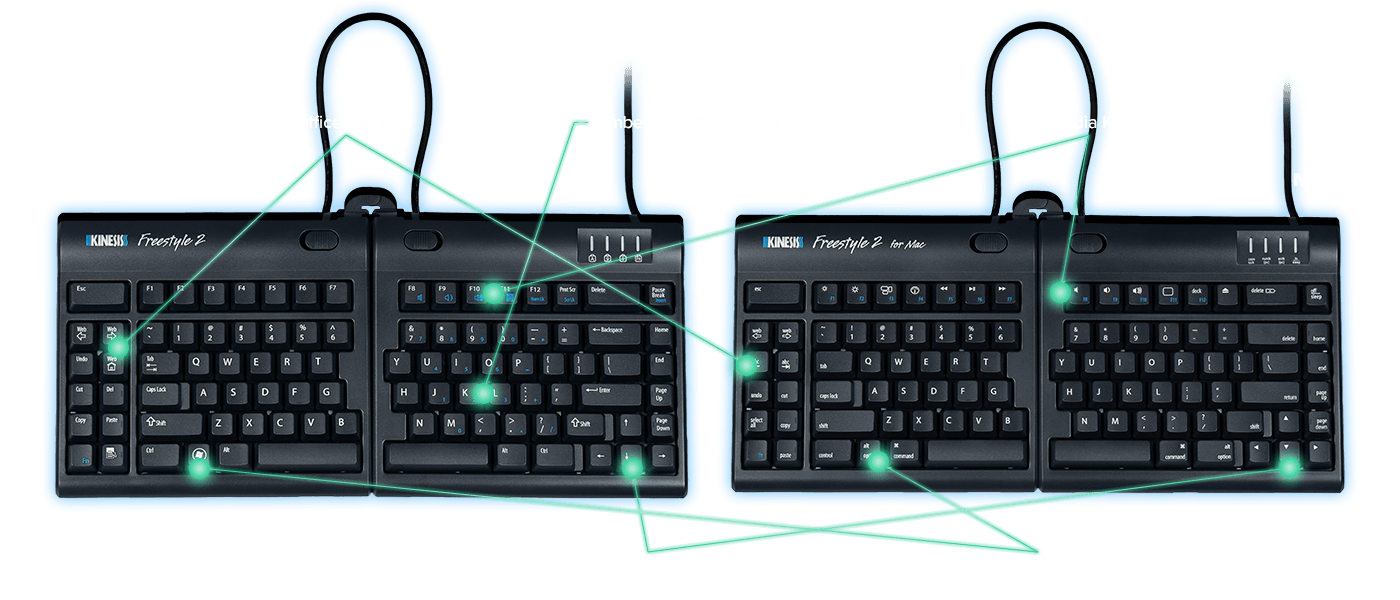
I just bought a new keyboard named the KINESIS Freestyle 2. I want to use it with my new computer in the most egonomic way possible to maximize typing speed and wrist health.
The Setup
The first thing to understand when setting up a keyboard is the layout.
1. Check your “Enter” Key
- ANSI (U.S.): The Enter key is a horizontal rectangle.
- ISO (International): The Enter key is an “L” shape (upside down) that spans two rows.
- JIS (Japan): The Enter key is also an “L” shape, but the keyboard will have extra specific Japanese character keys next to the spacebar.
2. Check your left “Shift” Key
- ANSI (U.S.): The left Shift key is a long, wide rectangle.
- ISO (International): The left Shift key is short and square, with an extra key (usually backslash
\or tilde~) placed between it and the “Z” key.
| Feature | ANSI (U.S.) | ISO (International) |
|---|---|---|
| Enter Key | Wide & Rectangular | Tall & “L” Shaped |
| Left Shift | Long | Short / Square |
| Common Regions | North America, Australia | UK, Europe, World |
3. Ergonomic Positioning
To get the most out of a split keyboard, the goal is “Neutral Posture”—where your joints are naturally aligned without strain.
- The “Split” Benefit: Move the two halves of the keyboard apart until they are shoulder-width. This prevents “Ulnar Deviation” (bending your wrists outward), which is a common cause of RSI.
- Straight Wrists: Ensure your wrists are not “cocked” upward or downward. If your desk is high, you might need a palm support or a slightly lower chair height to keep your forearms parallel to the floor.
- The “Tent” (Optional Upgrade): If you find your wrists getting tired, the Freestyle2 has an optional “VIP3” or “V3” accessory that “tents” the keyboard (raising the middle). This keeps your hands in a more natural “handshake” position.
4. Important Keystrokes for Default setting
- Open the Apple Menu () and select System Settings.
- Scroll down the sidebar and click on Keyboard.
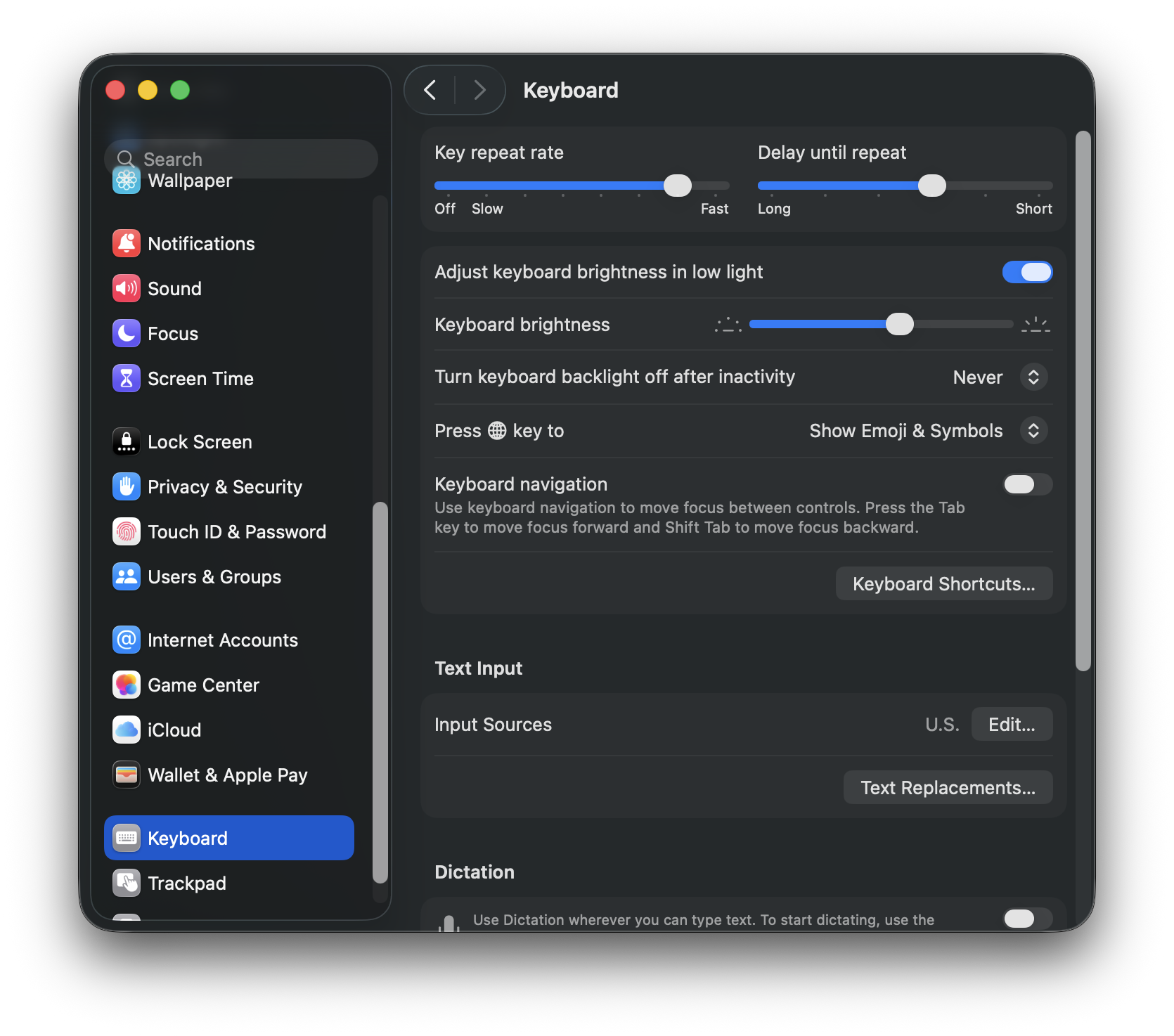
- Click on
Keyboard Shortcuts
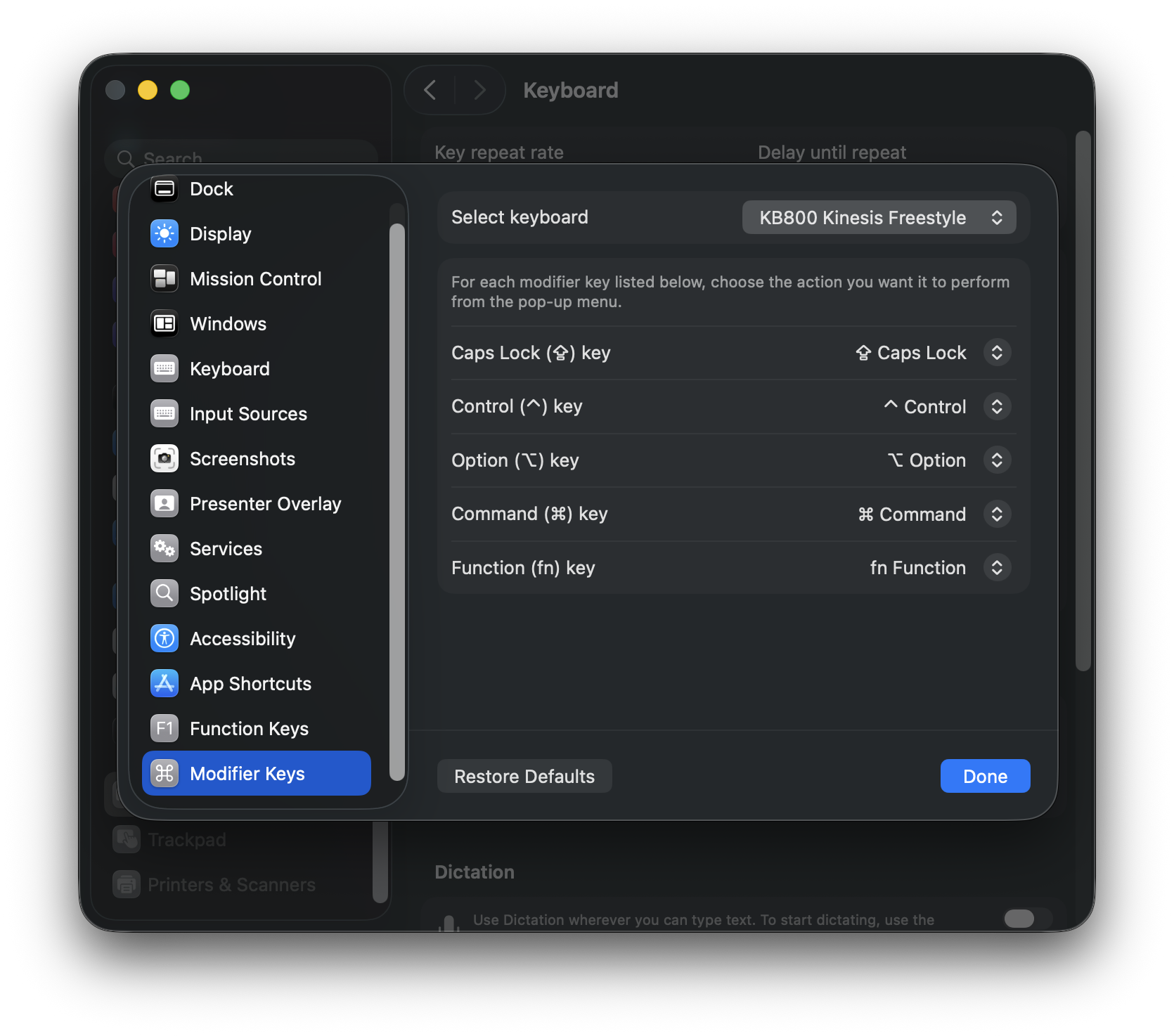
Modifier Keys
Use this to change the behavior of the “control” keys on your Kinesis.
- Select Keyboard: Ensure KB800 Kinesis Freestyle is selected in the dropdown.
- Key Remapping: Use the dropdowns to swap functions (e.g., changing Caps Lock to Control for easier coding shortcuts).
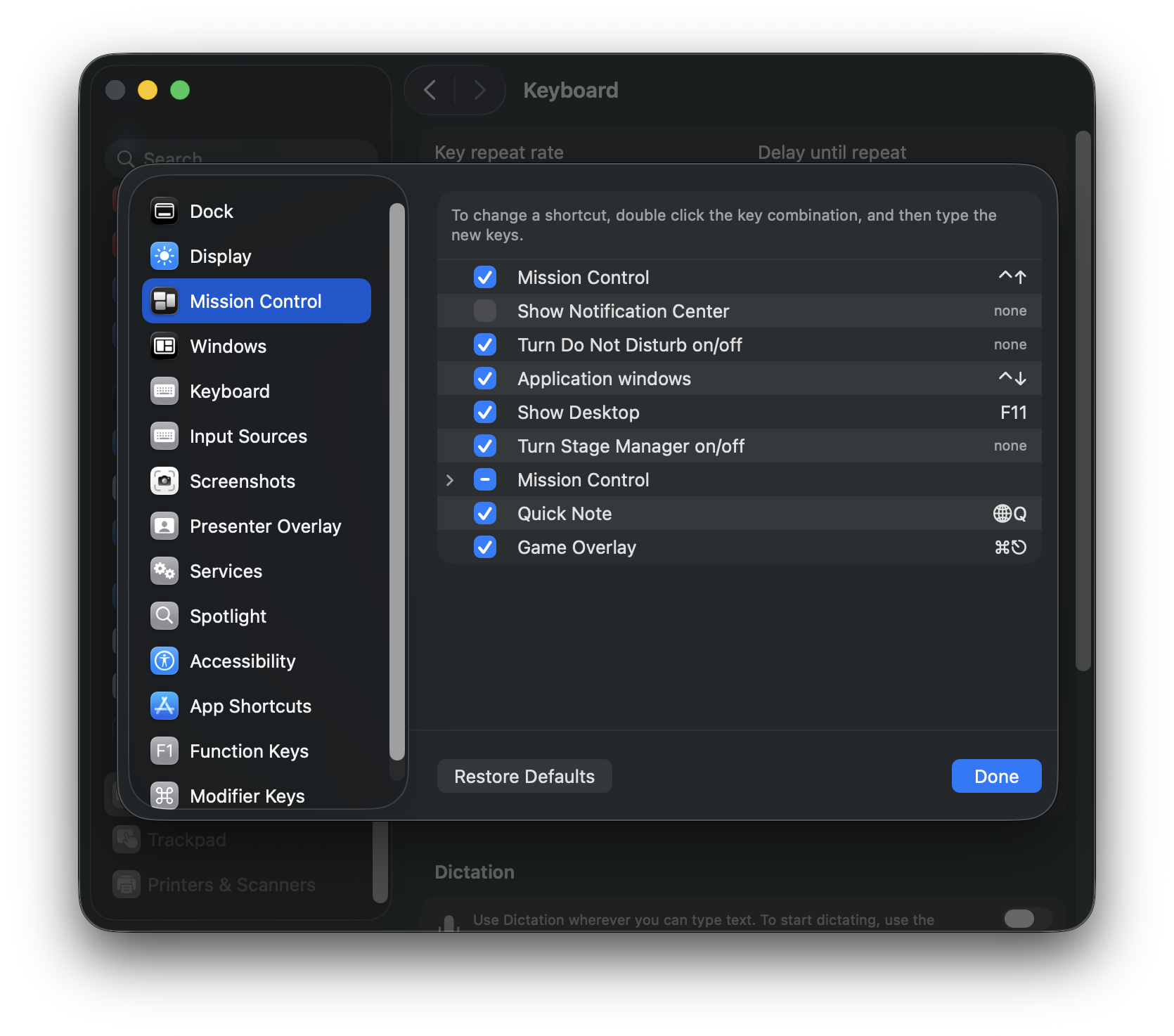
Mission Control
These shortcuts help you manage your open windows and workspaces.
- Mission Control (
^↑): Shows all open windows at once. - Application Windows (
^↓): Shows only the windows of the app you are currently using. - Show Desktop (
F11): Instantly hides all windows to show your files.
Spotlight
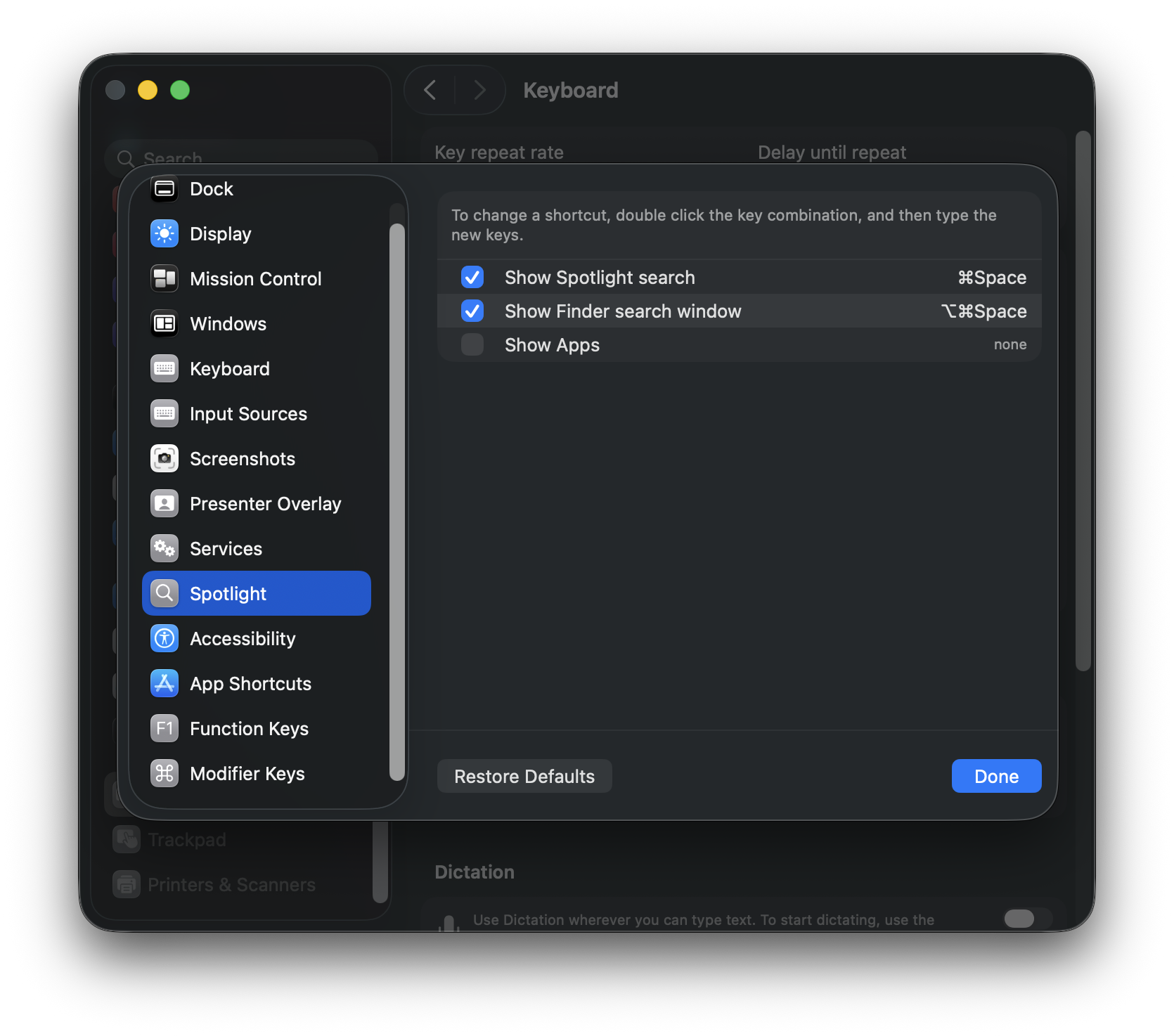
Your primary tool for finding files and launching apps like your FiberGround project.
- Show Spotlight Search (
⌘Space): Opens the search bar in the middle of your screen. - Show Finder Search Window (
⌥⌘Space): Opens a full Finder window pre-set to search your entire Mac.
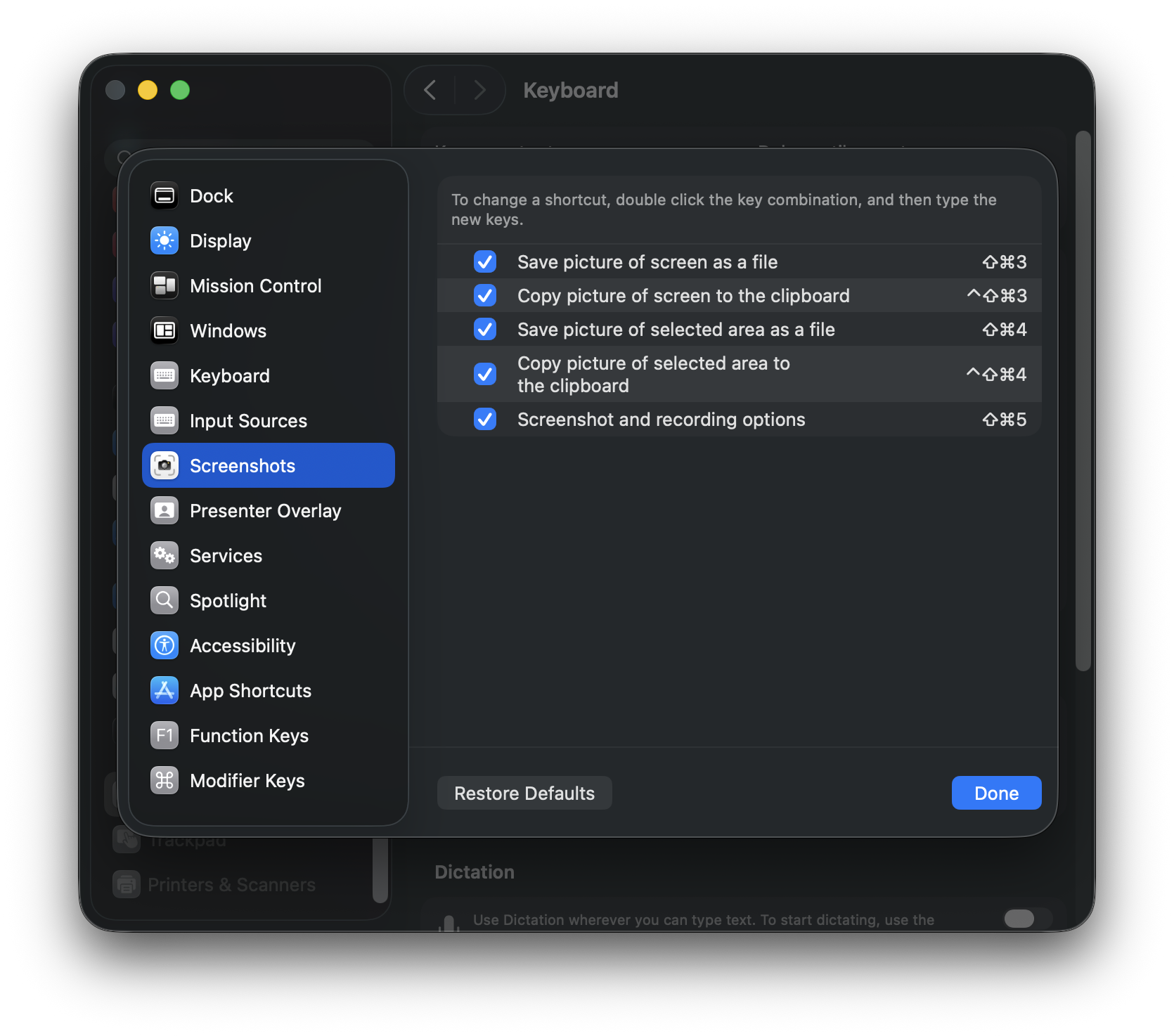
Screenshots
Essential for documenting.
- Save to File (
⇧⌘3or⇧⌘4): Captures your full screen or a selected area and saves it to your desktop. - Copy to Clipboard (
⌃⇧⌘3or⌃⇧⌘4): Does the same as above but saves it to your clipboard for instant pasting into your blog.